Create your gripper geometry with the desired suction cups, using the drawing module. Alternatively, an existing DXF drawing can also be imported and edited.
Open a new drawing inside the software and select the Sketch option. Create a drawing of the gripper with the wrist, base plate and suction cup plate and enter the text with the description of the gripper (alternatively, open an existing DXF drawing and adapt it as required).

Apply a different colour (e.g. cyan) to the contour of the base plate layer. To do this, select the ‘Related’ icon. Click on Layers and Add a new BasePlate Layer.
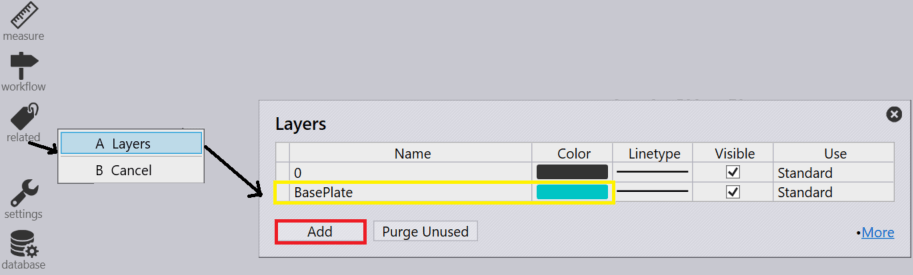
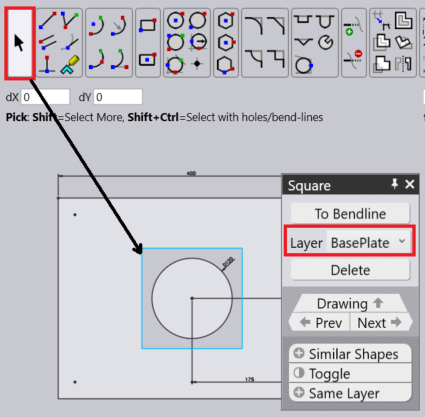
In the drawing module with the entry “BasePlate” at the corresponding colour (here cyan), the necessary layer can be defined. Click on the contour and use the Layer drop-down to select the corresponding layer.
Make sure that the centre of the wrist is at the drawing zero point and input the required text inputs for the parameters.
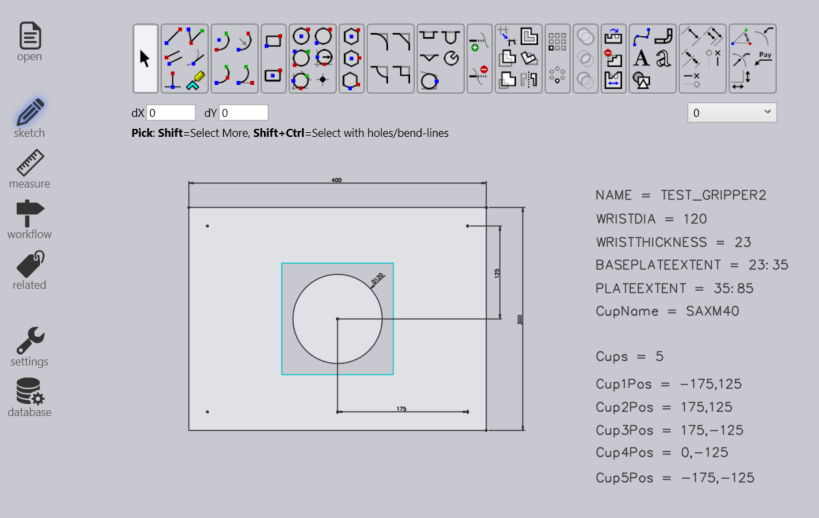
Many of the settings for this gripper come from text entities that are of the form KEY=VALUE. Here are the possible keys, with their meanings
| Key | Meaning |
| NAME | The name of the gripper |
| WEIGHT | Weight of the gripper, in kg. |
| WRISTDIA | Wrist diameter (must be 120/180 corresponding to BM60/BM150) |
| WRISTTHICKNESS | The thickness in Z of the wrist cylinder underneath. The wrist cylinder extends from Z=0 to this value |
| PLATEEXTENT | The Z extent (in the form ZMIN:ZMAX) of the plate. Typically, one sets ZMIN the same as WRISTTHICKNESS, so the plate starts where the wrist cylinder ends. |
| BASEPLATEEXTENT | The Z extent of the baseplate (see the section below on Two-Layered-Grippers) |
| CUPNAME | The type of suction cup used for this gripper (like SAXM50) |
| CUPS | The number of suction cups |
| CUP1POS | The position of the first suction cup in form X, Y |
| CUP2POS | The position of the second suction cup |
| CUPNPOS | The position of the Nth suction cup |
| CUPDIA | Can be used instead of CUPNAME to specify a suction cup (not recommended). |
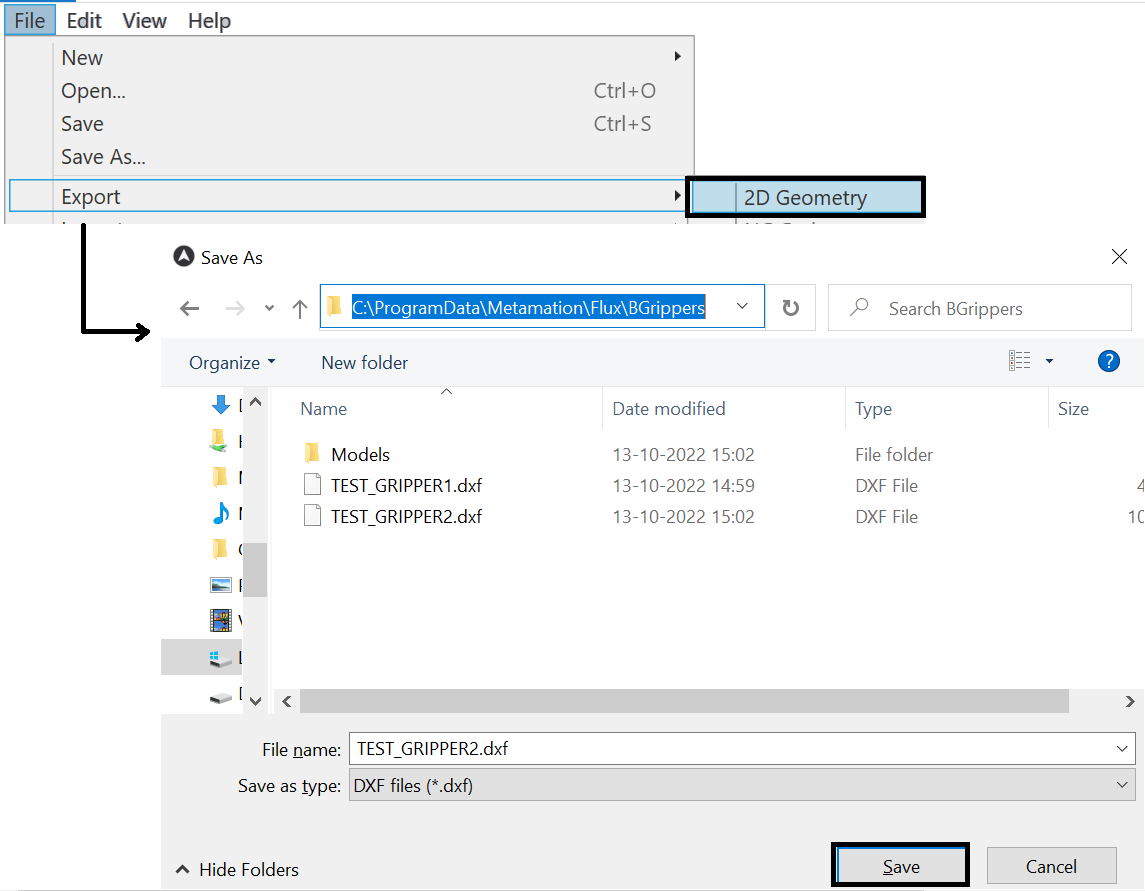
Export as DXF file under the below-mentioned path after updating the text parameters from the drawing module.
C:\ProgramData\Metamation\Flux\BGrippers\