
The Gripper panel is used to select a different gripper or to change the position and orientation at which the gripper picks up the part. (You can also access it using the Gripper link from the Pickup panel).
Name – Used to select a different gripper. Scrolling down under the name displays the grippers list to select, along with a thumbnail. The software automatically selects the Gripper from the list which can be used for the part provided. But you need to check if the selected Gripper best suits our requirement
Position – This shifts the Gripper along the Z & X direction and can be turned with the provided value inside the Angle space
If in case you need to use the Vacuum Grip and also we have the Gripper which is suitable for this part, you can select the Use Vacuum Grip option.
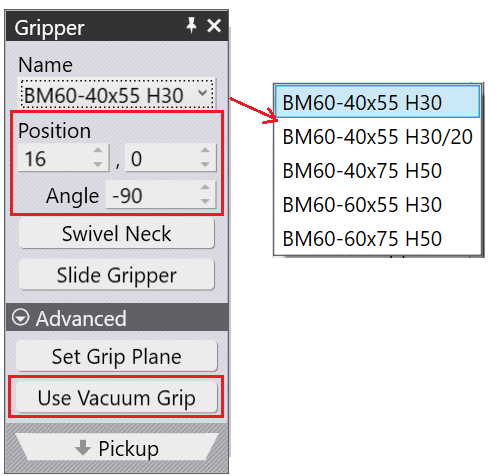
Swivel Neck – Rotate the Jaw Neck with 180° rotation.
Slide Gripper – Slide the position of the Gripper
Click on the Set Grip Plane and then move the mouse over the plane to set. As you move the mouse, the blue cross marker is drawn on the plane to indicate it. Click on the plane, and the gripper is moved to that plane. This function can be used both during the regrip cycle and also during part pickup.
As you make these changes, the software computes the collision status of the gripper with the punch, the die, the part, and other components in real-time for all bends and displays this in the navigator on the top. Thus, it is very easy to try different gripper positions, with immediate feedback.