
The Pallet panel is used to select a pallet and position it in the cell. You can open this panel by just clicking on a pallet; The software will also position the simulation timeline so that the robot is posed at the point of picking up the part from the pallet.
Name – Used to select a different pallet. Normally, only pallets that are usable for this blank are listed, but you can turn off the Filter check and then all available pallets are listed. Moving the mouse over a name in the names list displays a quick summary of that pallet, along with a thumbnail as shown below.
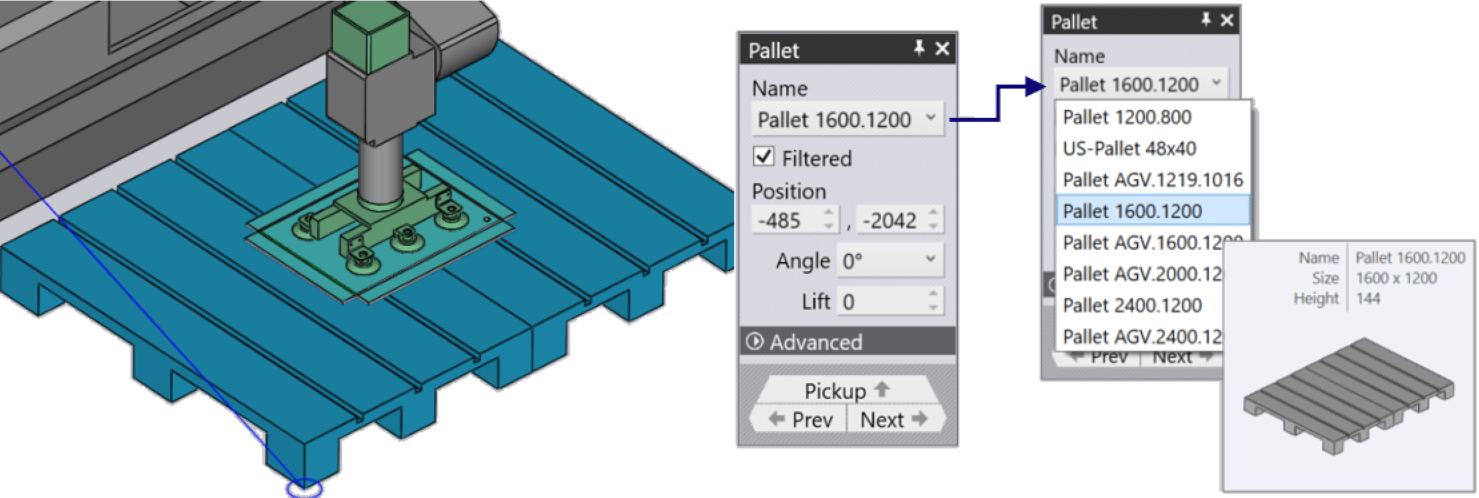
Position – Used to place the pallet in the cell within the required position
Angle – Used to rotate the pallet. As you move or rotate the pallet, the part stack on the pallet, and the gripper/robot all follow the movement.
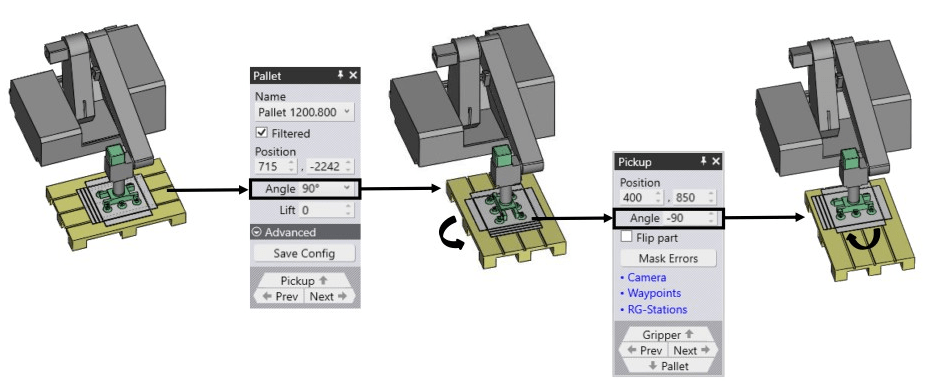
Lift – Used to mark the pickup height from the pallet.
Advanced – Used to save the last modified configuration of the modified cell
Next / Prev – Used to navigate to the other pallets in the cell; for example the pallet with the part-unload positions.
Pickup – Used to edit the position of the part stack on the pallet.