-
Cell Configuration
-
Automated Bending Workflow
-
-
- Alternating Deposit Type
- Deposit on Conveyor
- Drop to Basket
- Inclined and Inclined Pair
- Manual – Deposit Pattern
- Simple Grid Type
- Weave Deposit Type
- Show all articles (2) Collapse Articles
-
-
-
- Adding Cell Component – Dispenser Station
- Dispenser Panel
- Gripper Panel (Jaw Gripper/ Mechanical Gripper)
- Part Pickup: Using a Blank Dispenser
- Pickup Panel
- Using Jaw Gripper
- Show all articles (1) Collapse Articles
-
-
- Adapt Waypoints
- Display Waypoints
- Modify Waypoints
- Properties of Waypoints
- Simulate Waypoints
- Waypoints Overview
- Show all articles (1) Collapse Articles
-
-
- Extraction Strategy
- Left & Right Extractions
- No Extraction
- Slide Back
- Standard Extraction
- Standard Extraction + Up with Ram
- Tilt-Back Lower Extraction
- Unhook Extraction
- Show all articles (3) Collapse Articles
-
-
-
- Clamp + Station Method
- Clamp Method
- During Bend Method
- Post-Bend Method
- Regrip Methods
- Station Method
- Swivel Option
- Show all articles (2) Collapse Articles
- Adding Re-grip
- Gripper & Suction Panels
- Modify Regrip Position
- Regrip Stations Panel
- Regrip with a Jaw/Mechanical Gripper
- Regripping- RG-Stations
- Remove Regrip
- Show all articles (2) Collapse Articles
-
-
- Deposit Panels
- Navigator
- Pickup Panels
- Robot Panels
- Stage Panels
- Tooling and Gauging Panels
- Show all articles (1) Collapse Articles
-
This panel is used to control the part orientation and the position of the gripper on the part.
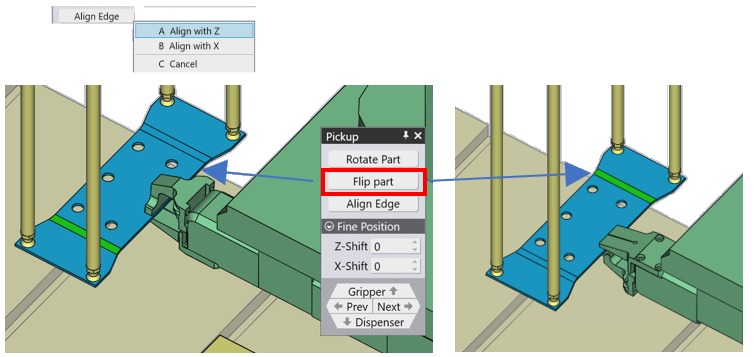
Flip Part – Used to flip the part as shown in the image.
Align Edge – Used to align to the edge for holding the part in the Z or X direction.
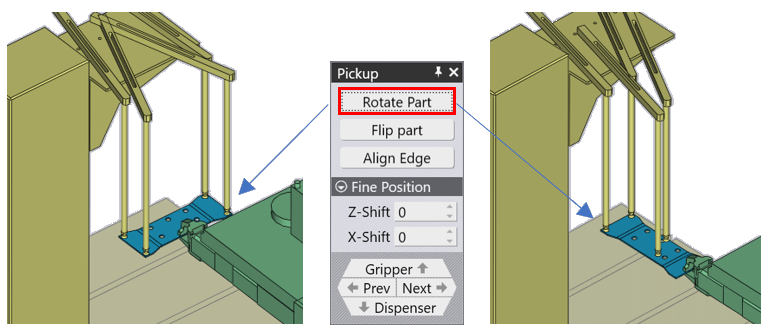
Rotate Part – Used to rotate the part for the Gripper to hold.
Fine Position – Used to move the part in the Z and X direction with the input value.
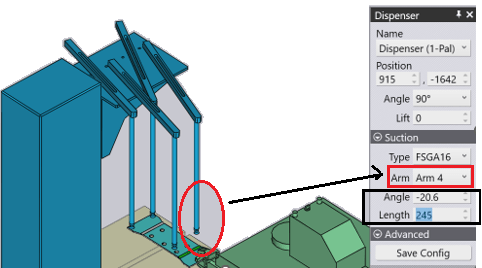
Also, make sure, the Arm holding the part is properly placed over the part correctly. You can click over the Arm and move it closer to the part using the Dispenser panel.
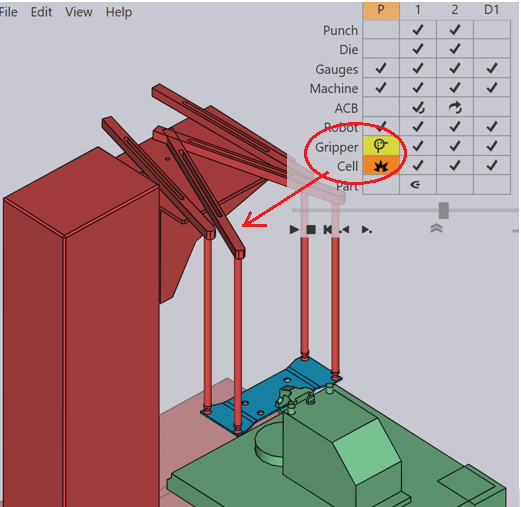
When you use the Rotate Part or Flip option, you may get the collision message also the Colour changes for the selected component to RED which indicates there is a collision. The Bending Step Navigator warn us with the collision symbol for the type of error. Correct the errors using the Pickup panel or the Dispenser Panel and proceed further.