
The Fold Navigator
When you are in the folding view, the Fold Navigator panel appears along the top edge of the Fold window. This navigator provides a quick way to navigate through various bend operations, and also an instant view into various status checks for every bend. It provides controls to view or stop the folding simulation. Here is an example of how the fold navigator looks:
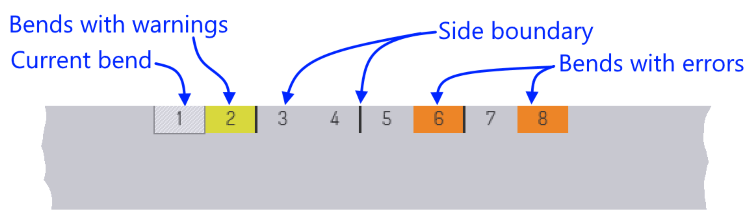
The navigator displays different colours for bends that have some warnings or errors. The current bend is displayed with an outlined box, and the thick dark lines between some bends represent side boundaries (where the operator has to rotate the part around to continue processing).
Simulation Controls
When you move the mouse near the fold navigator, simulation controls appear.
- The slider can be used to move the current bend through various phases of the folding operation (feed part to bending position, clamp with blank holder, move the folding blade, etc). As the slider is moved, the tooltip displays the current phase of folding, and various parts of the machine move in the simulation. If there are any collisions, those parts are coloured red to highlight the collision.
- The play controls near the left can be used to start the simulation, stop it, or rewind to the beginning. (Tip: You can also press the Spacebar to start or stop playing the fold simulation).
- The play one button can be used to play just one bend; use this repeatedly to view the simulation of all the bends. (Tip: you can press Ctrl+Spacebar to play just one bend).
- The downward-facing chevron near the middle can be used to expand the fold navigator, displaying more detailed information about the errors and warnings for various bends. (Tip: you can also press the Z key to expand/collapse the fold navigator display).
Fold Navigator: Expanded View
When you open the fold navigator by clicking the open button, or by pressing the z key, this is how it looks:
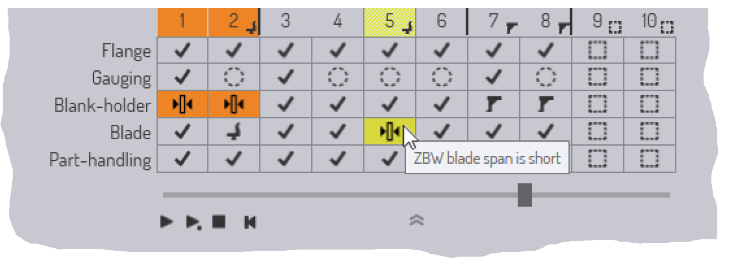
For each bend, the navigator now displays a set of status icons. Each coloured icon represents an error or a warning. Moving the mouse over the coloured cell displays some more information about what the error or warning is (as you can see in the picture above).
Clicking on a cell that displays an error positions the simulation so that the error is immediately obvious. For example, clicking on a cell that displays a blade-crash error moves the simulation to the stage of the simulation where the blade crashes with the workpiece.
Status Icons
There are several different status icons displayed in different rows of the Fold Navigator. The sections below explain the meanings of these icons. Note that you can always get more information about what an icon means by just moving the mouse over the icon.
The ‘Flange’ Row
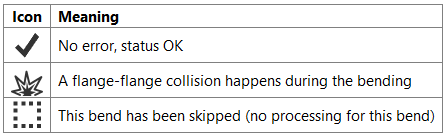
The Flange row of the fold navigator displays information about intra-part collisions (one flange of the model colliding with another). Fold will try to avoid this where possible by altering the sequence. These are the icons you may see in the Flange row:
The ‘Gauging’ row
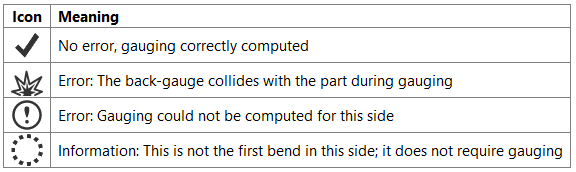
The Gauging row of the fold navigator displays the gauging status. Since gauging is only used for the first bend in a side, all the other bends in a side will display a hollow circle icon (indicating that this bend requires no gauging operation).
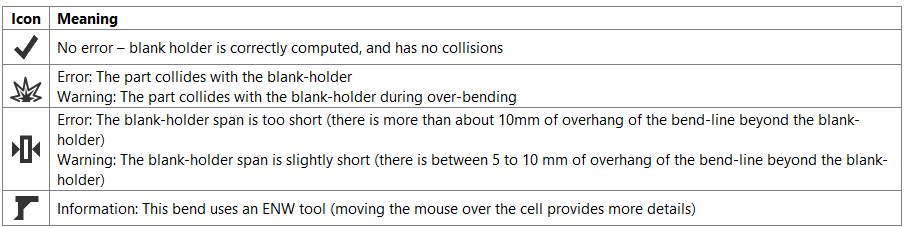
The ‘Blank-holder’ row
This row of the fold navigator displays status information about the blank holder. These are the possible errors or warning icons you may see in this column. Some icons are used both for errors or warnings, and the distinction between the two is made based on the background colour of the cell (yellow for warnings, orange-red for errors).
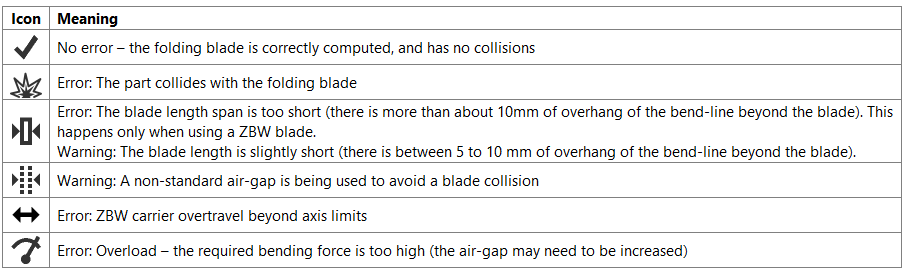
The ‘Blade’ row
This row provides information about the folding blade used for this bend. The list below shows the possible icons you may see in this column:
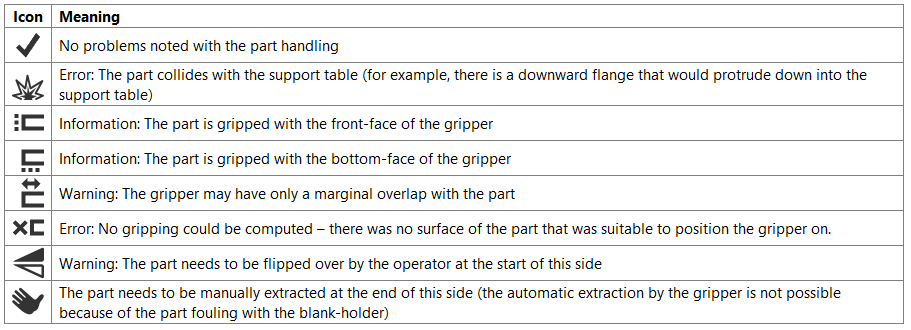
The ‘Part handling’ row
This row displays information about the status of part handling using vacuum grippers or magnetic grippers. These are the icons that could be displayed here:
As you make changes in the blank holder, blades, gripper or back-gauge configurations, the fold navigator is immediately updated with the new status. This immediate feedback makes it very easy to experiment with different configurations without having to issue a ‘recompute’ command each time.