
Editing a Bend Operation
Some basic settings of a bend operation can be edited by bringing up the Bend panel. To bring up the bend panel, use the fold navigator:
- Click on one of the numbers in the fold navigator to switch to a bend
- Click again on the same number to bring up the bend panel for that bend
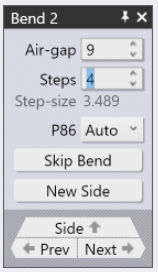
The bend panel can be seen alongside. This has some settings and operations for working on the bend.
The Air-gap input box is used to adjust the air gap for bending (this is the gap between the blade and blank holders). As the air gap is adjusted from its default value, the Fold Navigator will display a non-standard air-gap warning. Collision checking will also be done immediately with the updated air gap and you can tune the air gap to prevent collisions. The bending force will also be computed, and if you set the air gap so low that the maximum bending force is exceeded, the fold navigator will display this as an error.
The Steps let you control the number of steps used during the bump bending.
The P86 setting is used to control the application of additional hold-down pressure during the bending cycle.
Use the Skip Bend button to skip this bend; this bend will not be processed by the panel bender and needs to be processed later (possibly by a press brake).
The New Side button is used to split a side into two separate sides; this appears only if you are not editing the first bend in a side. Clicking this button splits the side at this bend, and starts a new side. There are several reasons you may want to split a side:
- The side may need to be split into two, and the part may need to be flipped between the two sides before processing can be completed.
- Some bends from another side may need to be completed before the remaining bends of this side can be completed. In this case, you can split the side, and re-sequence the sides so the bends from the other side are inserted in between.
The Prev and Next buttons are used to navigate between the different bends in the part. (You can also use the PageUp and PageDown keys for this).
The Side button is used to navigate up from this bend op to the containing side. Clicking this button displays the Bend Side panel (described below) which can be used to perform some operations on the entire bending side (or section).
If this bend has been skipped, these settings are not displayed; there is only an Unskip Bend button to bring the bend back into processing.
Pre-Bending
It is possible to enable Pre-bending for a fold operation if it is not the last operation or the only operation on a side. This will split the fold operation into two and a new fold operation (post-bend) will be added after the next operation. The prebend angle can be edited by the ‘Prebend‘ text box.
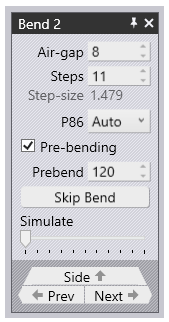
The newly added bend can then be completed manually by selecting the ‘Manual Steps‘ button and adding manual axis moves.
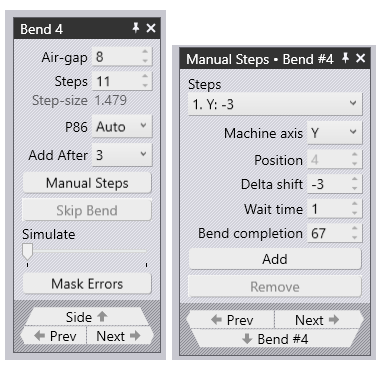
Manual steps can be added and removed using the ‘Add’ and ‘Remove’ buttons. ‘Steps’ is the list of all the manual steps that have been added. When a specific step is selected, the ‘Manual Steps’ panel and the simulation are updated to match the selected step.
The axis to be moved in the current step can be selected via the ’Machine Axis’ combo box. ‘Position‘ displays the value of the selected axis at the end of the previous step and ‘Delta shift‘ is the amount of axis movement in the current step. The axis value at the end of the current step will be ‘Position’ + ‘Delta shift‘. ‘Bend completion’ is the percentage of the bend completed by the end of the current step.