Editing the Blades
The blade settings for each bend can be edited by accessing the Blade Panel. To access the blade panel for a particular bend:
- Switch to that bend by clicking on the number in the fold navigator, or by using the PageUp / PageDown keys.
- Click on the standard blade, the ZBW blade or the ZBW blade carrier to open the Blade panel
The blade panel is displayed as shown alongside. Here are the various settings you can control from this panel:
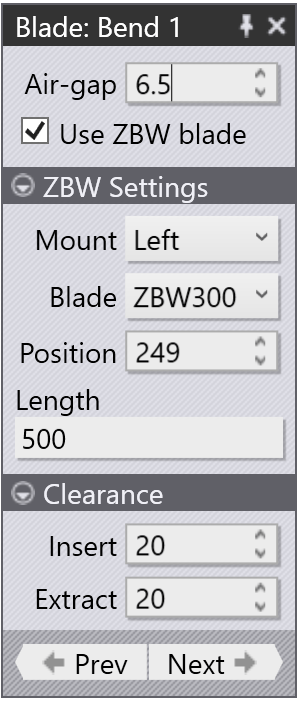
Use the Air-gap setting to adjust the air gap. As the air gap is adjusted from its default value, the Fold Navigator will display a non-standard air-gap warning. Collision checking will also be done immediately with the updated air gap and you can tune the air gap to prevent collisions. The bending force will also be computed, and if you set the air gap so low that the maximum bending force is exceeded, the fold navigator will display this as an error.
The Use ZBW blade toggle can be used to turn on or off the use of ZBW blades for this bend. If the bend is too long, or no ZBW blades are available, this may be greyed out (moving the mouse over the checkbox will tell you why it is greyed out).
ZBW Settings
Click on the ZBW Settings header to open that section, if it is closed.
Use the Mount list to select if this bend should use a blade mounted on the Left carrier, or the Right carrier. For bends that contain multiple segments, you can also choose Both, to indicate that some segments are processed with the left blade while others are processed with the right blade
Use the Blade selector to pick one of the ZBW blades available for this machine.
Use the Position selector to change the position of the blade along the machine’s bending axis. For both blades, this position indicates the location of the reference edge of the blade (the edge closer to the back gauge) along the machine’s bending axis, with 0 being at the centre. As you adjust this position, you can see the ZBW blade immediately move, and the navigator at the top displays the current status. These are the possible status indicators:
- The blade may be slightly short of the bend span (5 to 10 mm short). This is indicated as a warning.
- The blade may be more than 10 mm short of the bending span (the bend overhangs the blade by more than 10 mm on one side or the other). This is indicated as an error.
- The blade may collide with the part during the bending cycle; this is indicated as an error.
Use the Length input to enter the length of the blade. It is possible to create a blade mount that has multiple spans, separated by gaps.
Clearance
Click on the Clearance header to open that section, if it is closed
Use the Insert clearance value to adjust the clearance between the ZBW blade and the part as the blade is inserted.
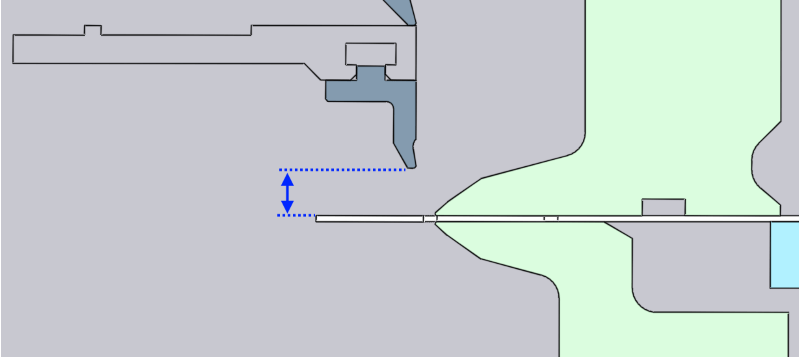
Use the Extract clearance value to adjust the clearance between the ZBW blade and the part while the blade is extracted (or moved to a different position for the next bend). The image below shows how the clearance is measured
Mount Lengths and Gaps
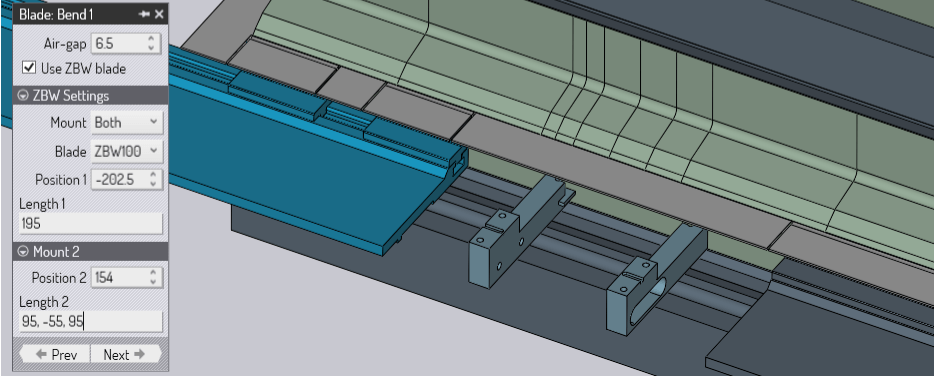
The image above shows Both mounts being used. There is now an additional section that allows you to enter the position and length of the second mount. The Length 2 setting has been set to 95,-55,95. This means that there is a 95 mm section of the blade, a 55 mm gap, and an additional 95 mm section of the blade. Positive numbers are used to indicate blade lengths, while negative numbers indicate gaps between blade segments. The measurements always start from the reference edge of the blade carrier (the edge closest to the back gauges).
Using this length input, it is possible to compose a blade with any number of OS segments, separated by gaps. Note that the blade segment lengths are limited to multiples of 5 mm, while the gaps can be set at any value.
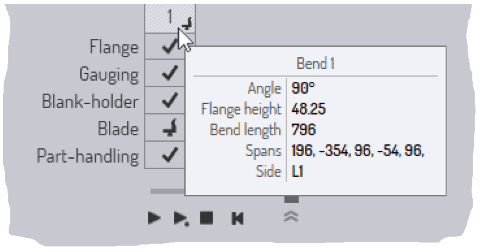
Note 1: The same notation (of using positive numbers for spans, with negative numbers for gaps) is also seen in the tooltip that is displayed for such a multi-segment bend.
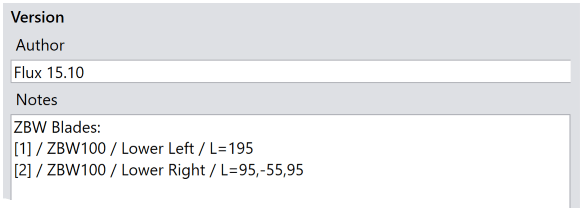
Note 2: The notation is also used to express the blade length in the NC code that is generated. The Notes section of the NC code shows this blade composition thus: