
Panel-Bending Settings
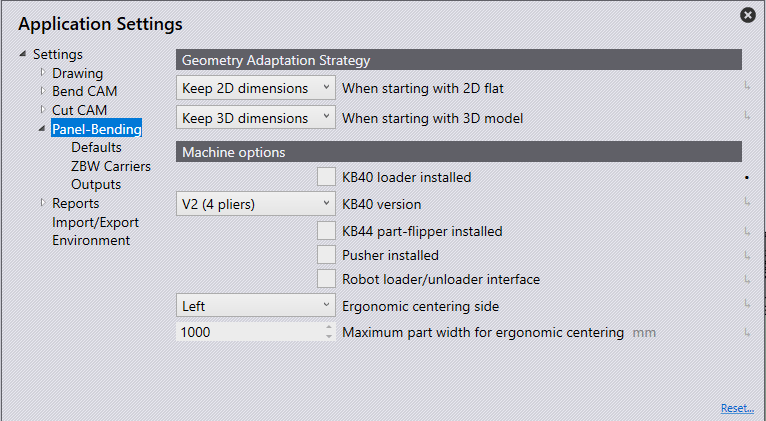
Geometry Adaptation Strategy
When starting with a 2D flat
Ask each time – When navigating from a 2D part to bending, using this setting will automatically display the Adapt Geometry dialogue. This will give options of retaining the flat size, retaining the 3D dimensions or not changing anything, making this feature very interactive and user-led.
Keep 3D dimensions – This option changes the unfolding, which then must be saved manually. This strategy is used if the blank has not yet been cut.
Keep 2D dimensions – This option will mean the bend radius and the bend deduction are adjusted to the existing unfolding; the bending line remains in the same place. This will change the side length of the part. The unfolding is not changed. This strategy is used if the blank has already been cut to size.
No adjustments – Using this option will mean bend radius and bend deduction remains unchanged. The part is displayed with the correct dimensions in 3D, but the shown bend radii do not correspond to the actual bend radii. The dimension of each workpiece bends can change.
When starting with a 3D model
Ask each time – When navigating from a 3D part to bending, using this setting will automatically display the Adapt Geometry dialogue. This will give options of retaining the flat size, retaining the 3D dimensions or not changing anything, making this feature very interactive and user-led.
Keep 3D dimensions – This option changes the unfolding, which then must be saved manually. This strategy is used if the blank has not yet been cut.
Keep 2D dimensions – This option will mean the bend radius and the bend deduction are adjusted to the existing unfolding; the bending line remains in the same place. This will change the side length of the part. This strategy is used if the blank has already been cut to size.
No adjustments – Using this option will mean bend radius and bend deduction remains unchanged. The part is displayed with the correct dimensions in 3D, but the shown bend radii do not correspond to the actual bend radii. The dimension of each workpiece bends can change.
Machine Options
KB40 loader installed – Enable this option if the machine has a KB40 loader installed. This will enable the functionality to create and modify the KB40 pallet
KB40 version – Allows you to select the version of KB40 that is installed. This displays the correct model in the KB40 pallet editor and uses the correct Z3 configuration for feasibility checks.
KB44 part-flipper installed – Enable this if a part can be flipped on the machine using a KB44 part flipper.
Pusher installed – The PUSHER unit can be configured for a machine by turning on this setting.
Robot loader/unloader interface – Enable this option to load the robot/unloader interface to the machine.
Ergonomic centring side – Choose whether the gauging centring happens in the Middle (no ergonomic centring), or on the Left or Right.
Maximum part width for ergonomic centring – Enter the maximum part width for the ergonomic centring.