Quick Search
Switching to Fold CAM
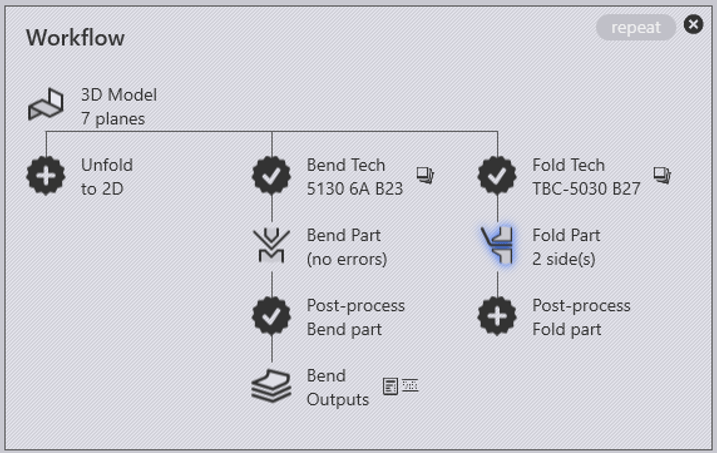
If you have a 3-D sheet metal model open, you can switch to Fold CAM using the Workflow pane (see the chapter on Part Workflow for more details on this). Here is one way you could switch to the folding mode.
- Click on the workflow icon in the command bar on the left.
- Click on the Fold Tech process node in the workflow panel (see the highlight in the image on the right). Optional: click on the auxiliary icon to the right of the Fold Tech process node to select a different panel bender first
- Click the close button to close the workflow panel.
Here is a faster way to do this, using the keyboard
- Press W to open the workflow panel.
- Press F to switch to the folding mode.
- Press Esc to close the workflow panel.
An even faster method can be used if you simply want to use the default folding machine (the same one that was used the last time)
- Open a part
- Press F to switch to the folding mode